Tracking
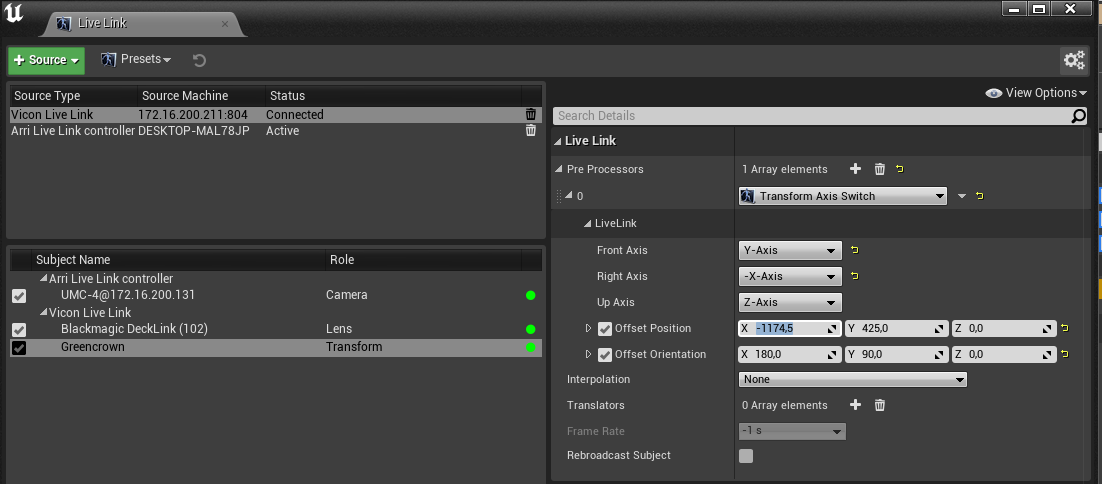
Calibration new center
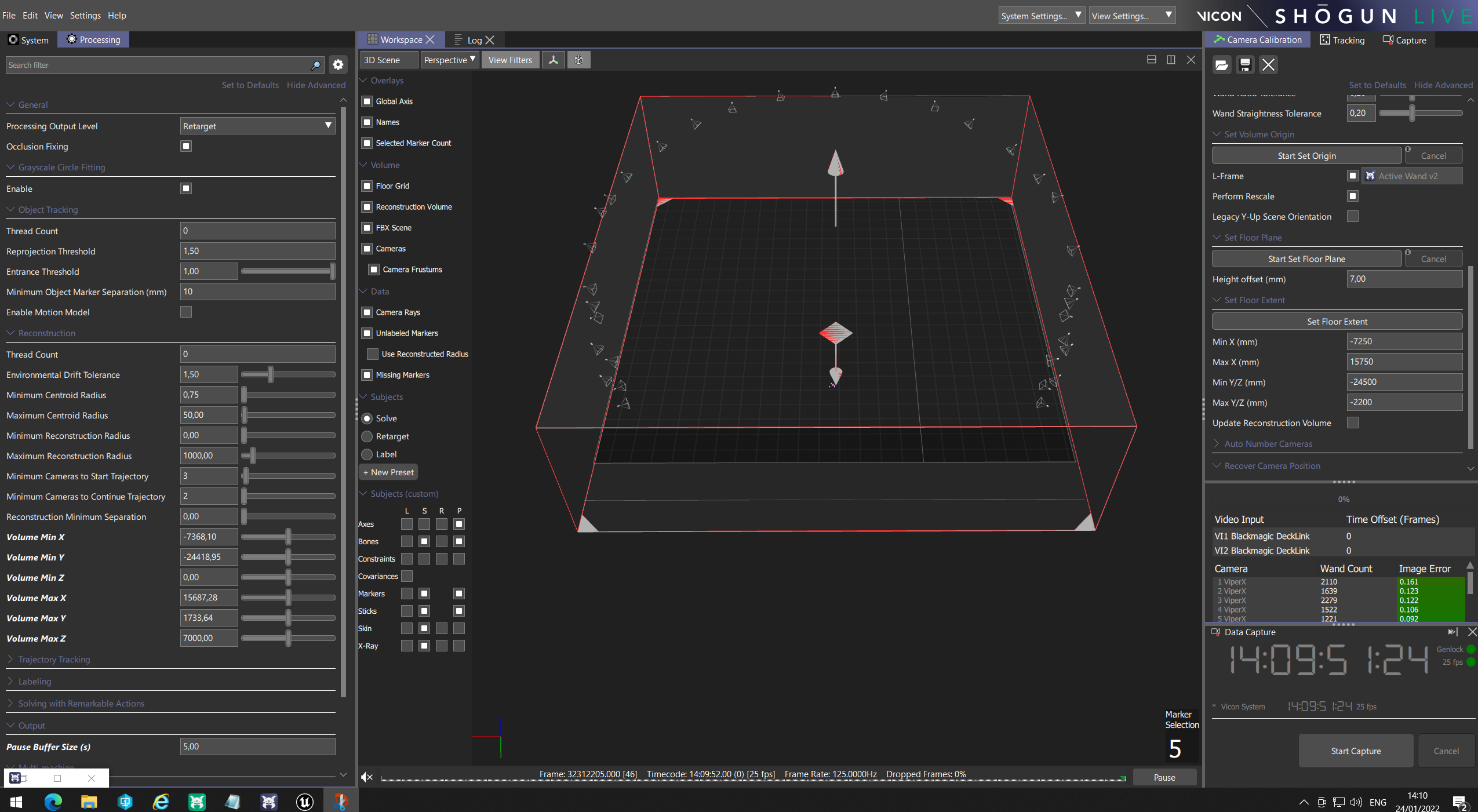
Volume MinX: -7368,10
Volume MinY: -24418,95
Volume MinZ: 0,00
Volume MaxX: 15687,28
Volume MaxY: 1733,64
Volume MaxZ: 7000,00
Unreal Engine Camera-Calibrator Blueprint
The Camera-Calibrator Blueprint lets you select a specific camera setup in the Unreal Engine ( for example: Crane, Steady, Tripod) which takes a a pre-calibrated Crown-offset to give you the correct position of the camera without video calibrating in Shogun Live. This is supposed to help to switch out crowns quickly during a shoot and to save time. In order to use this tool, the pre-calibration has to be done first. For the pre-calibration place the camera on a tripod inside the Vicon-Volume (if possible try to put the camera in the center of the volume so that many cameras can see the crown that is attached to the Camera.

Create a prop for the Crown in Shogun and perform a Video Calibration in Shogun Live. As soon as the video calibration is done, link the Camera to the Crown and unlink it right after again. In the Tracking List there will appear this little tracking symbol next to the Crown name, that was linked. Right-click the Crown and export it to a known location on your computer. Repeat this for every Crown that you are going to use.
Now open Unreal and go into the InnerFrustumCamera inside the Unreal Engine World Outliner. Make sure that the camera uses the correct LiveLink Transformation of the Crown that is currently on the Camera.
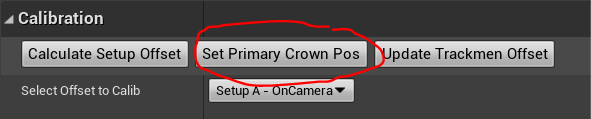
Select the Blueprint and go to the details panel of that Blueprint. In the Calibration panel select and hit the button ”Set Primary Crown Pos”. This will save the transformation of the primary transformation that is later used to calibrate the offset to the different setups.
Now change the socket position of the Crown on the camera for a new Setup (for example Crane or Steady)
For example from this (Tripod-Setup/ Primary Pos)

to this (Crane-Setup/Setup D)

Go back to the Calibration section inside the details panel and select a Setup that you want to calculate the offset of.
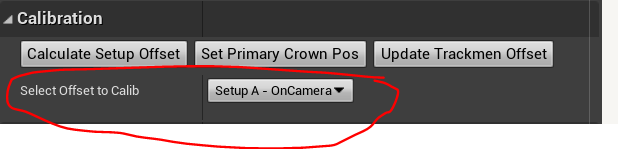
After choosing a Setup hit the button ”Calculate Setup Offset” to calculate the offset between the new position of the crown and the Primary Position that was saved before.
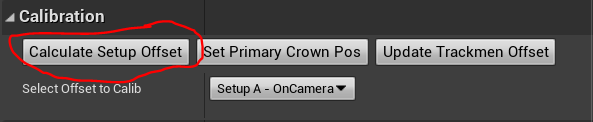
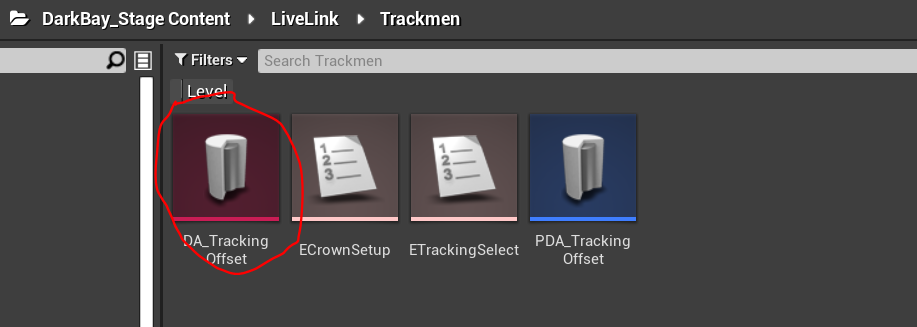
This will save the new offset for the chosen Setup inside the DA_TrackingOffset file which you can look up.
In order to choose a setup go to the default section of the InnerFrustumCamera and select a Setup. This will move the InnerFrustumCamera to the position with the correct offset that was calculated before.

Trackmen
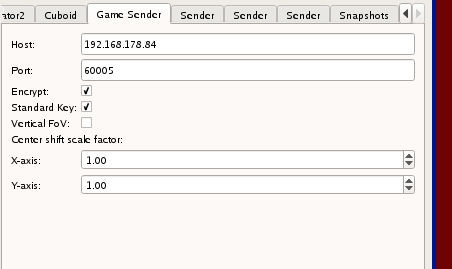
Export folders
C:\Users\darkbay\Desktop\Recordings
C:\Users\darkbay\Desktop\Recordings\SnowyMountain
C:\Users\darkbay\Desktop\Recordings\Skwoids
Tracking Export to Nuke
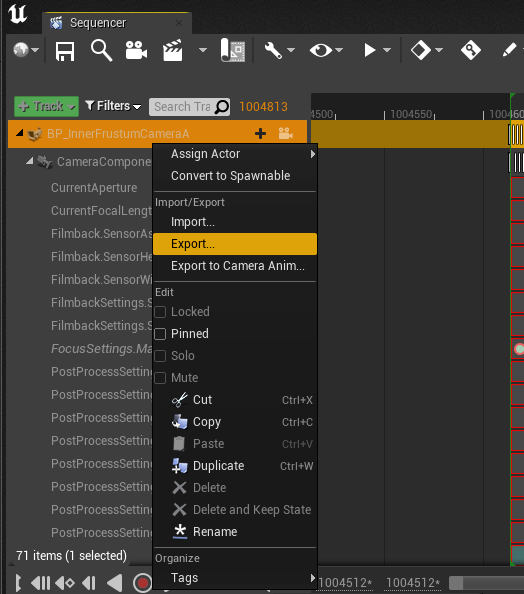
Select the camera in the sequencer and hit export:
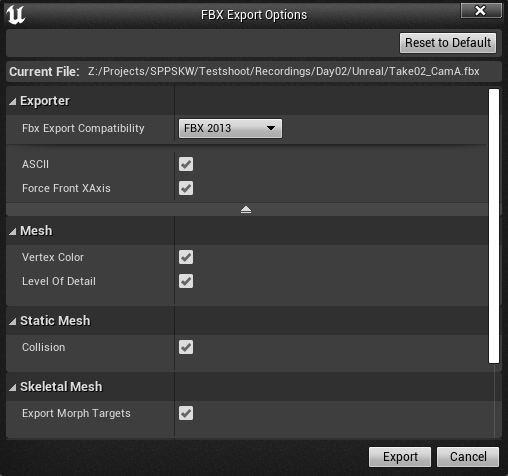
Enable “Force Front XAxis” and ASCII/FBX Export Compatibility
import the camera into nuke (read the fbx from file)
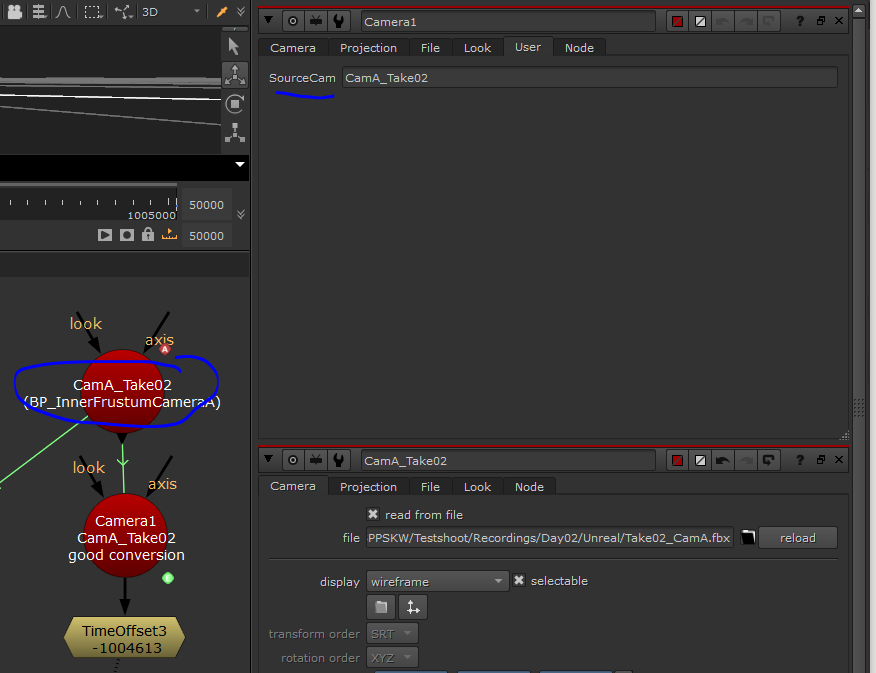
use this camera node in nuke to convert the transform spaces to match Nuke:
set cut_paste_input [stack 0]
version 13.1 v1
push $cut_paste_input
Camera3 {
 translate {{"-\[value SourceCam].translate.x"} {"\[value SourceCam].translate.y"} {"\[value SourceCam].translate.z"}}
 rotate {{"-\[value SourceCam].rotate.y"} {"\[value SourceCam].rotate.z"} {"-\[value SourceCam].rotate.x"}}
 name Camera5
 label "\[value SourceCam]\ngood conversion\n"
 selected true
 xpos -186
 ypos 251
 addUserKnob {20 User}
 addUserKnob {1 SourceCam}
 SourceCam CamA_Take02
}
make sure that the rotation order and the axis assignment match:
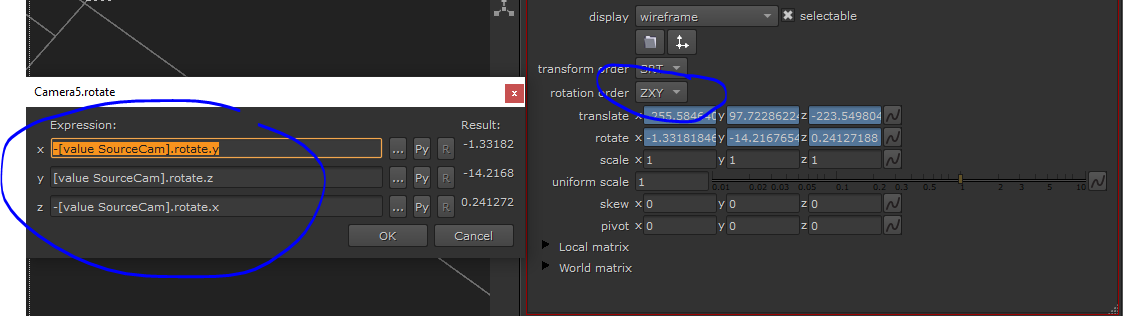
add the SourceCam from the camera into the SourceCam slot in the usertab: